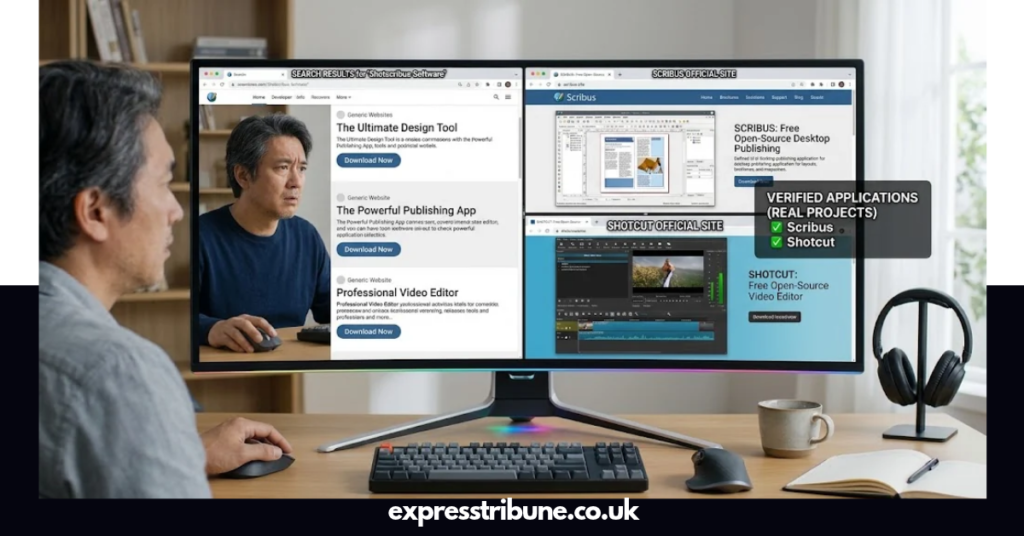

Searching for how to download shotscribus software for computer can lead to confusing results. You may find websites describing it as a design tool, publishing application, or creative software, but there is an important detail to check before installing anything: a separate, officially verified application named Shotscribus has not been established by the available project documentation. Downloading an unfamiliar installer can expose your computer to unwanted programs. The good news is that trusted alternatives, including Scribus and Shotcut, offer practical solutions for different creative needs.
What Is Shotscribus Software?
Shotscribus is a name that appears in online articles about computer software and digital design. However, available information does not establish it as an independent application with a verified developer, official release history, and authenticated installer.
This distinction matters because a software name appearing in search results does not automatically mean that a genuine application exists under that name.
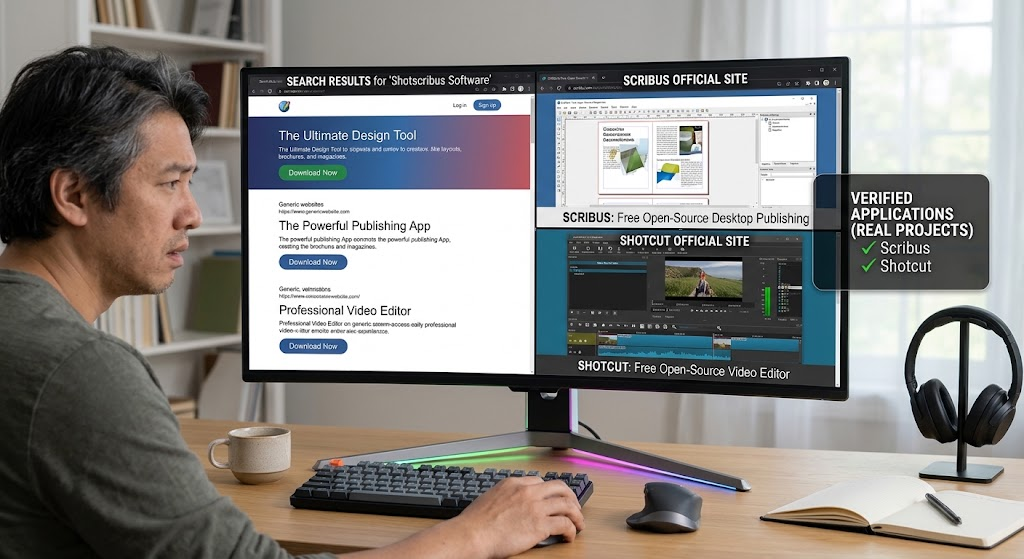
Users searching for Shotscribus may actually need one of two established programs:
- Scribus: Free, open-source desktop publishing software for creating brochures, magazines, newsletters, posters, and other page layouts.
- Shotcut: Free, open-source video editing software for editing video clips, adding effects, working with audio, and exporting finished videos.
These applications serve different purposes. Neither should be treated as an official version of Shotscribus without reliable evidence establishing that connection.
How to Download Shotscribus Software for Computer Safely
Before following any download instructions, verify the software’s identity. There is no confirmed official Shotscribus download page that can be recommended as an authenticated source.
If you are looking for a publishing application, download Scribus from its official project website. If you need video editing software, visit Shotcut’s official download page instead.
Use these steps to make the right choice:
- Identify the task you want to complete, such as designing a brochure or editing a video.
- Visit the official website of the appropriate software project.
- Check the supported operating systems and system requirements.
- Select the version that matches your computer.
- Download the installer or package directly from the project’s website.
- Scan the downloaded file with your computer’s security software.
- Follow the installation instructions provided by the software developer.
Important: These instructions explain how to obtain legitimate alternatives. They do not confirm that a separate Shotscribus application is available for download.
Quick Comparison: Shotscribus, Scribus, and Shotcut
The following table explains the differences between the name you searched for and the established software alternatives.
| Feature | Shotscribus | Scribus | Shotcut |
| Independent software identity | Not verified | Established project | Established project |
| Main purpose | Unclear | Desktop publishing | Video editing |
| Brochures and magazines | Not verified | Yes | No |
| Video editing | Not verified | No | Yes |
| PDF publishing | Not verified | Yes | Not its primary purpose |
| Open-source status | Not verified | Yes | Yes |
| Windows support | Not verified | Available through project channels | Available through project channels |
| macOS support | Not verified | Available through project channels | Available through project channels |
| Linux support | Not verified | Available through project channels | Available through project channels |
| Verified download source | Not established | Official Scribus website | Official Shotcut download page |
The practical choice is simple: use Scribus for page layout and Shotcut for video production. Avoid assuming that a website offering a file named Shotscribus is affiliated with either project.
Why Do People Search for Shotscribus for PC?
People often search for unfamiliar software names after seeing them in blogs, social posts, advertisements, or search results. The name may sound like a dedicated application, even when its identity and purpose remain unclear.
Several factors can cause this confusion:
- Similar names may make separate programs appear related.
- Third-party articles may describe software without linking to developer documentation.
- Search results may repeat claims that have not been independently verified.
- Download pages may use familiar software terms to attract visitors.
Before installing any program, look for a named developer, a genuine project website, a documented version history, and clear installation instructions.
These checks help you separate established software from unverified download offers.
What Is Scribus Desktop Publishing Software?
<Entity value=”Scribus” category=”software” disambig=”Open-source desktop publishing application”/> is a free, open-source application designed to arrange text, images, shapes, and other elements on pages. It is particularly useful for people who need more control over the appearance of printed or exported publications.
Common projects include:
- Business brochures and flyers
- School magazines and newsletters
- Posters and promotional materials
- Books and longer documents
- Product catalogues
- Business cards and informational sheets
- Print-ready PDF documents
Scribus also offers publishing-oriented features such as colour management and controls for preparing professional page layouts. These features make it more suitable for publication design than a basic image editor.
If your original search for how to download shotscribus software for computer was motivated by a need to design documents, Scribus is a sensible program to investigate first.
How to Download and Install Scribus on Windows
Windows users can obtain Scribus through the project’s official website. Always check the available release and system requirements before downloading.
Follow this installation guide:
- Open the official website at scribus.net.
- Find the download section and select the Windows package offered for your system.
- Wait for the download to finish.
- Open your Downloads folder and locate the installer.
- Double-click the installer you obtained from the official project source.
- Follow the on-screen instructions and review the installation options.
- Launch Scribus from the Start menu after installation.
- Create a new document to check that the program opens correctly.
If Windows displays a security warning, do not bypass it automatically. Confirm the source and authenticity of the file first.
Tip: Avoid installers from unrelated websites that claim to offer a special Shotscribus edition, premium unlock, or unofficial upgrade.
How to Install Scribus on macOS and Linux
Scribus is not limited to Windows. Users of macOS and Linux can also investigate the packages and installation methods offered through the official project and their operating-system distribution.
Installing on macOS
- Visit the official Scribus website.
- Open the download information and identify the compatible macOS package.
- Download the package from the verified source.
- Follow the supplied installation instructions.
- Open Scribus and test it with a new document.
Check compatibility with your macOS version before choosing a package.
Installing on Linux
Linux users may find Scribus through their distribution’s software manager or supported package repositories. Available versions can vary by distribution.
- Open your Linux software manager.
- Search for Scribus.
- Check the package name and source.
- Install the package using the distribution’s normal process.
- Launch the program from the application menu.
If you need a particular release, compare the package information with the official project documentation before proceeding.
What Is Shotcut, and When Should You Use It?
<Entity value=”Shotcut” category=”software” disambig=”Free open-source cross-platform video editor”/> is a separate application for video editing. It is useful for trimming clips, arranging footage on a timeline, adjusting audio, applying filters, and exporting finished videos.
Shotcut supports Windows, macOS, and Linux, with downloads provided through its official website.
Choose Shotcut if your main goal is to:
- Edit videos for YouTube or social media.
- Combine multiple video clips.
- Add titles and visual effects.
- Adjust brightness, colour, or sound.
- Export a finished video in a suitable format.
To get started, visit the official Shotcut download page, select the package for your operating system, and follow the project’s installation instructions.
Do not download Shotcut from an unfamiliar page simply because that page uses the name Shotscribus.
How to Choose the Right Software for Your Computer
The best application depends on the work you want to complete. Installing the wrong tool can waste time and leave you with software that does not meet your needs.
| Your goal | Suitable option | Why it fits |
| Create a brochure | Scribus | Designed for page layout |
| Design a magazine | Scribus | Supports multi-page publishing |
| Prepare a publication PDF | Scribus | Provides publishing and PDF features |
| Edit a video | Shotcut | Provides a video timeline and editing tools |
| Trim and combine video clips | Shotcut | Supports clip editing and sequencing |
| Download an independently verified Shotscribus application | None confirmed | Its standalone identity is not established |
| Avoid suspicious installers | Official project sources | Provide a clearer route to authentic software |
For a beginner, the most useful first step is to decide whether the project involves pages and print design or video and audio editing.
This simple decision makes it easier to choose a tool with the right features.
System Requirements Before Downloading Software
Before downloading a program, check whether your computer meets its requirements. The exact requirements depend on the application version, operating system, and package you select.
Review these items:
- Operating system: Confirm support for your Windows, macOS, or Linux version.
- Processor: Check whether the package supports your computer’s CPU architecture.
- Memory (RAM): Make sure enough memory is available for the application and your other programs.
- Storage: Leave enough free space for the installer, application, and working files.
- Permissions: Ensure you can install applications on the computer.
- Updates: Keep your operating system and security software updated.
For Shotcut, the official FAQ lists version-specific operating-system and hardware requirements. Check the Shotcut FAQ before installing it on an older or lower-powered computer.
For Scribus, use the official project website and relevant documentation to check requirements for the release you plan to install.
Do not rely on an unverified Shotscribus download page to determine compatibility.
How to Check Whether a Software Download Is Safe
A safe download begins with verifying where the file came from. A professional-looking website, logo, or download button does not prove that an installer is authentic.
Use this checklist before installing unfamiliar software:
- Confirm the developer’s identity.
- Check whether the official project website links to the download.
- Review the software name and version.
- Avoid unexpected browser extensions and bundled applications.
- Scan the file using reputable security software.
- Check a published file hash when the developer provides one.
- Stop if the installer asks for unrelated permissions or sensitive information.
If you accidentally download a file advertised as Shotscribus, do not open it until you can establish its source and purpose.
A file name alone cannot prove that a program is legitimate or malicious. The appropriate response is to verify the file rather than make assumptions about it.
Common Problems During Software Installation
Even legitimate applications can encounter installation problems. The following table explains common issues and practical ways to investigate them.
| Problem | Possible reason | Recommended action |
| Installer will not open | Incomplete download or incompatible package | Download the correct package again from the official source |
| Operating-system warning appears | Unknown publisher, signing status, or security restriction | Verify the file before deciding whether to proceed |
| Application fails to start | Missing dependencies or compatibility issue | Check the official troubleshooting documentation |
| Not enough storage | Limited free disk space | Free up space before reinstalling |
| Wrong version downloaded | Incorrect operating system or CPU architecture | Review system information and select the appropriate package |
| Download page looks suspicious | Unverified website or misleading branding | Close the page and visit the official project website directly |
| Program does not perform the expected task | The wrong type of software was installed | Choose a publishing application or video editor according to your needs |
Avoid downloading additional repair tools from pop-ups that appear during installation. Investigate the issue through the software developer’s own support resources instead.
Can You Trust Websites Offering Shotscribus Downloads?
A website offering a Shotscribus download should be assessed on its evidence, not its promises. The absence of a verified standalone application does not prove that every website mentioning the name is malicious, but it means users should not assume that a downloadable file is official.
Look for the following trust signals:
- A clearly identified developer or publisher.
- A verifiable official website.
- Public documentation and release notes.
- A consistent product name and version history.
- Download links that lead to an identifiable project source.
- Clear support and security information.
Be especially cautious of claims that a download is an exclusive edition, an urgent security update, or a free premium version when the developer cannot be verified.
If the website cannot establish the software’s identity, do not install its files simply to test them.
What to Do If You Have Already Downloaded Shotscribus
If a file labelled Shotscribus is already on your computer, take a few sensible precautions before opening it.
- Do not run the installer until its origin has been checked.
- Review the download URL and the file’s properties.
- Scan the file with your installed security software.
- Delete the file if you cannot establish a trustworthy source and do not need it.
- If you already ran it and notice unexpected pop-ups, browser changes, or unfamiliar applications, run a security scan and review recently installed programs.
- If you entered a password on a suspicious page, change it from a trusted device and enable multifactor authentication where available.
If your security software identifies a threat, follow its recommended quarantine or removal process.
These steps are general precautions. They do not mean that every file using the Shotscribus name contains malware.
Official Resources for Safe Software Downloads
Use primary project sources to confirm the software’s identity and obtain installation information.
| Resource | What you can verify | Official link |
| Scribus project website | Desktop publishing software, project information, and download guidance | Scribus |
| Shotcut download page | Available video editor packages and supported operating systems | Shotcut Downloads |
| Shotcut FAQ | System requirements and installation troubleshooting | Shotcut FAQ |
| Shotcut release notes | Version history and changes between releases | Shotcut Release Notes |
These resources are useful because they come from the respective software projects rather than from third-party pages making unverified claims about Shotscribus.
Frequently Asked Questions
1. How to download Shotscribus software for computer?
A separate, officially verified Shotscribus installer has not been established. Visit the official Scribus website for desktop publishing or the Shotcut download page for video editing, depending on your needs.
2. Is Shotscribus software available for Windows 11?
I could not verify an official Shotscribus release for Windows 11. Scribus and Shotcut are established alternatives, but you should check each project’s current compatibility information before installing either program.
3. Is Shotscribus free to download?
The availability and licensing of a standalone Shotscribus application have not been verified. Scribus and Shotcut are free, open-source programs available through their respective project websites.
4. Is Shotscribus the same as Scribus?
There is no verified official evidence that Shotscribus is an alternative name or official edition of Scribus. Scribus is an established desktop publishing application with its own project identity and documentation.
5. Is it safe to download Shotscribus from a third-party website?
The safety of an individual file cannot be determined from its name alone. Avoid unverified installers and use the official project website for the software you actually need.
6. Which software should I use instead of Shotscribus?
Choose Scribus if you want to create brochures, magazines, posters, or publication PDFs. Choose Shotcut if you want to edit videos, combine clips, add effects, or adjust audio.
Conclusion
Before following a guide about how to download shotscribus software for computer, verify that the application actually exists as an independently documented product. Available information does not establish an official standalone Shotscribus release, so downloading an unfamiliar installer is not the best way to get started.
For page layouts, brochures, magazines, and publication PDFs, explore Scribus through its official website. For video editing, use Shotcut and its official download page. Both options provide a clearer path to established software with identifiable project resources.